
Make copies and name tags
Design one piece and fill the board with it. Copies stay linked to the original, and each one can carry its own text, so six name tags are one design. Make copies is a Pro tool; the Name tags ×6 example in First cuts opens for everyone.
Select what to repeat
Select the element, or several at once (for a tag: its outline, its text and its cord hole).
Open Make copies
Click Make copies on the element's row in the panel, or on the floating toolbar on the board.
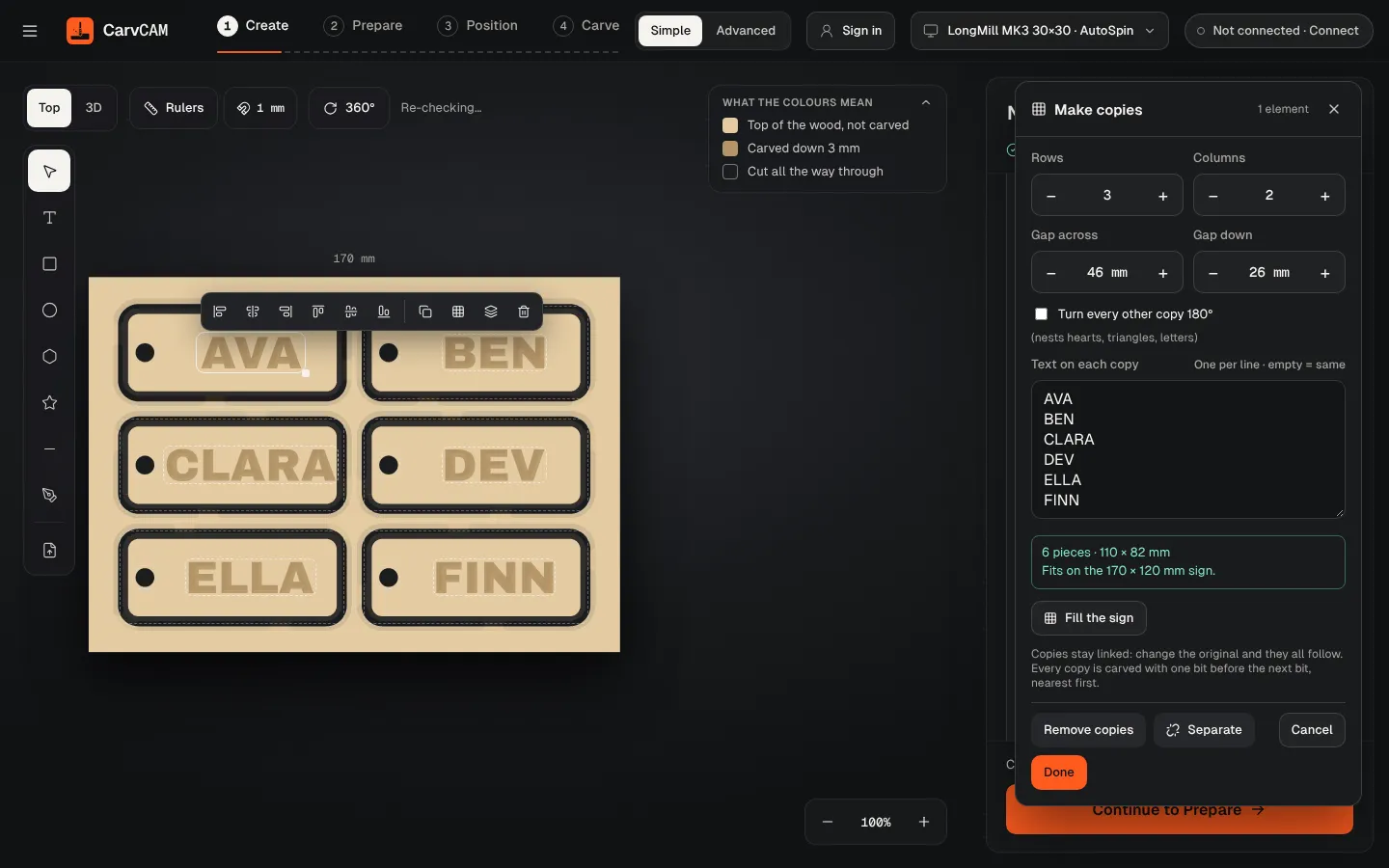
Set the grid
Set Rows, Columns, Gap across and Gap down. The panel shows how many pieces, their total size, and whether they fit on the board.
Fill or grow
Fill the board places as many as fit, centered. If they run past the edge, a button offers to make the board bigger, as long as your machine can take it.
Name each copy
When the selection has text, type one line per copy in Text on each copy. An empty line keeps the original text.
Done
Click Done. The copies appear on the board with a link mark.
Good to know
- Copies stay linked: change the original and they all follow. A copy itself can't be edited.
- Turn every other copy 180° nests hearts, triangles and letters tighter.
- Separate turns each copy into its own element; Remove copies goes back to one.
- In the carve, every copy is cut with one bit before the next bit, nearest first, so there is one bit change for the whole board.
- Use the Part style to cut each copy out with holding tabs (Cut styles).
Open Name tags ×6 in First cuts: one tag, five linked copies, six names. Step by step: Make 6 name tags in one job.
To make a separate sign for each row of a spreadsheet, use Batch from CSV (Pro).