
Prepare the carve
Prepare turns the design into the path of the bit, with feeds and speeds for your machine, and checks the result before it lets you near the machine.
Pick a speed
Under Speed, choose Fast, Balanced or Detailed (see the table below). Each one shows its time. Values come from Sienci's speed table for your machine and bit.
Check tabs and bits
If the job cuts parts out, check Holding tabs. If fine details need a smaller bit, turn on Second bit.
Check time and G-code
Time & G-code lists the time, the bits, the Makita dial for each cut and the board needed. G-code verified means the file passed CarvCAM's checks. Print setup sheet gives you a one-page summary for the machine.
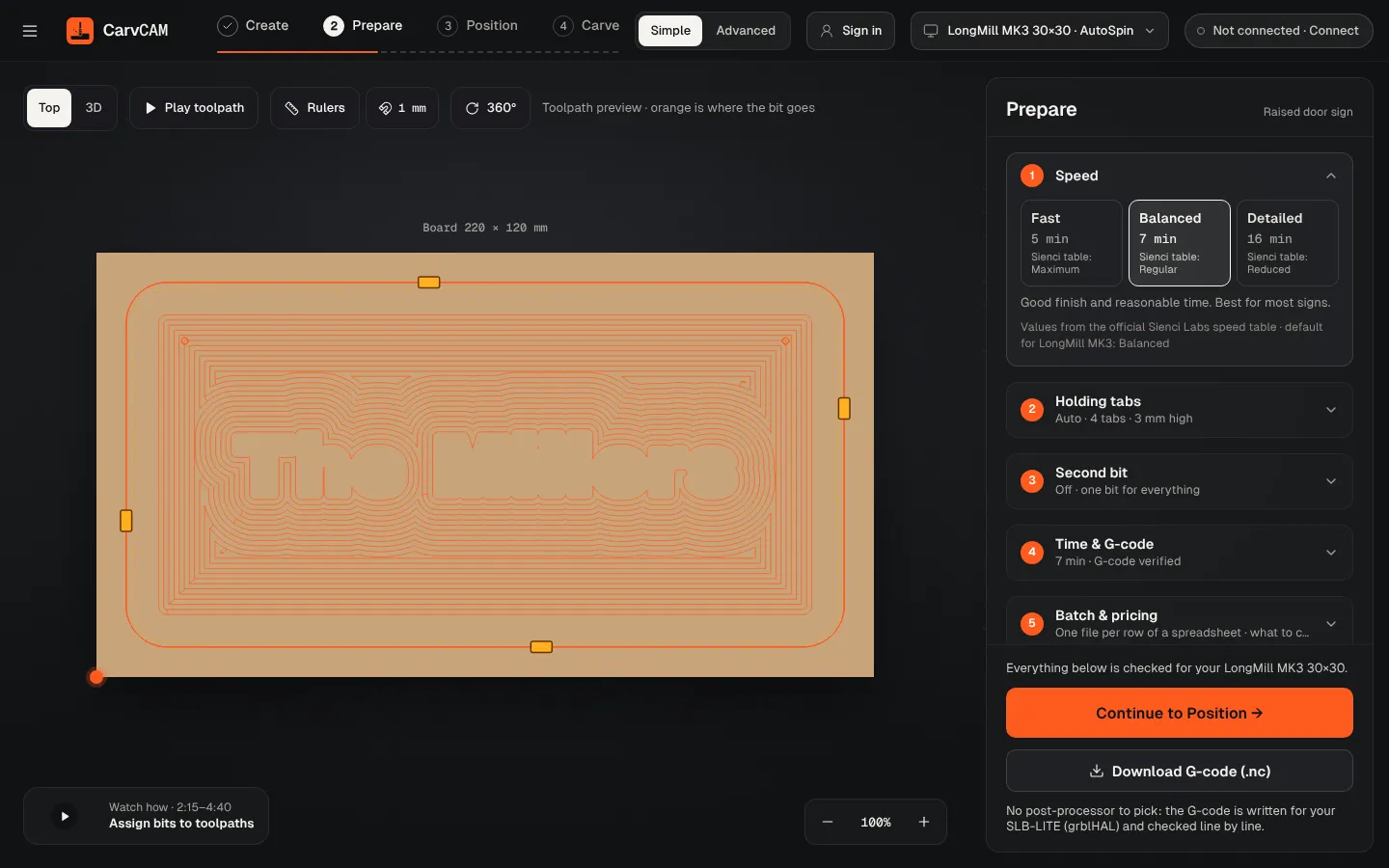
Preview
Play toolpath animates the bit (orange is where the bit goes). Switch to 3D to see the finished piece.
Continue
Continue to Position → takes you to the machine.
Which speed to use
| Option | Sienci table | When to use it |
|---|---|---|
| Fast | Maximum | Soft wood and simple shapes; edges may need a bit more sanding |
| Balanced | Regular | Most signs: good finish in reasonable time |
| Detailed | Reduced | Small letters and the cleanest edges |
Two bits
Turn on Second bit when fine details need a smaller bit. CarvCAM engraves the details with the finer bit and the rest with the larger one, and asks for the change in the middle of the carve.
Other ways to run the job
CarvCAM runs the machine itself, so you don't need another program. If you still want one, Download G-code (.nc) under Continue to Position saves the verified file, for another sender (gSender included) or a USB stick.
The G-code is written for the controller in your machine profile (LongBoard, SuperLongBoard, SLB-LITE or SLB-EXT) and checked line by line: travel, depth, bits, feeds and spindle range.