Keep-out zones and the setup sheet
Two free tools for a safer carve: keep-out zones tell CarvCAM where your clamps are, and the setup sheet puts the whole job on one printed page.
Clamps and keep-out zones
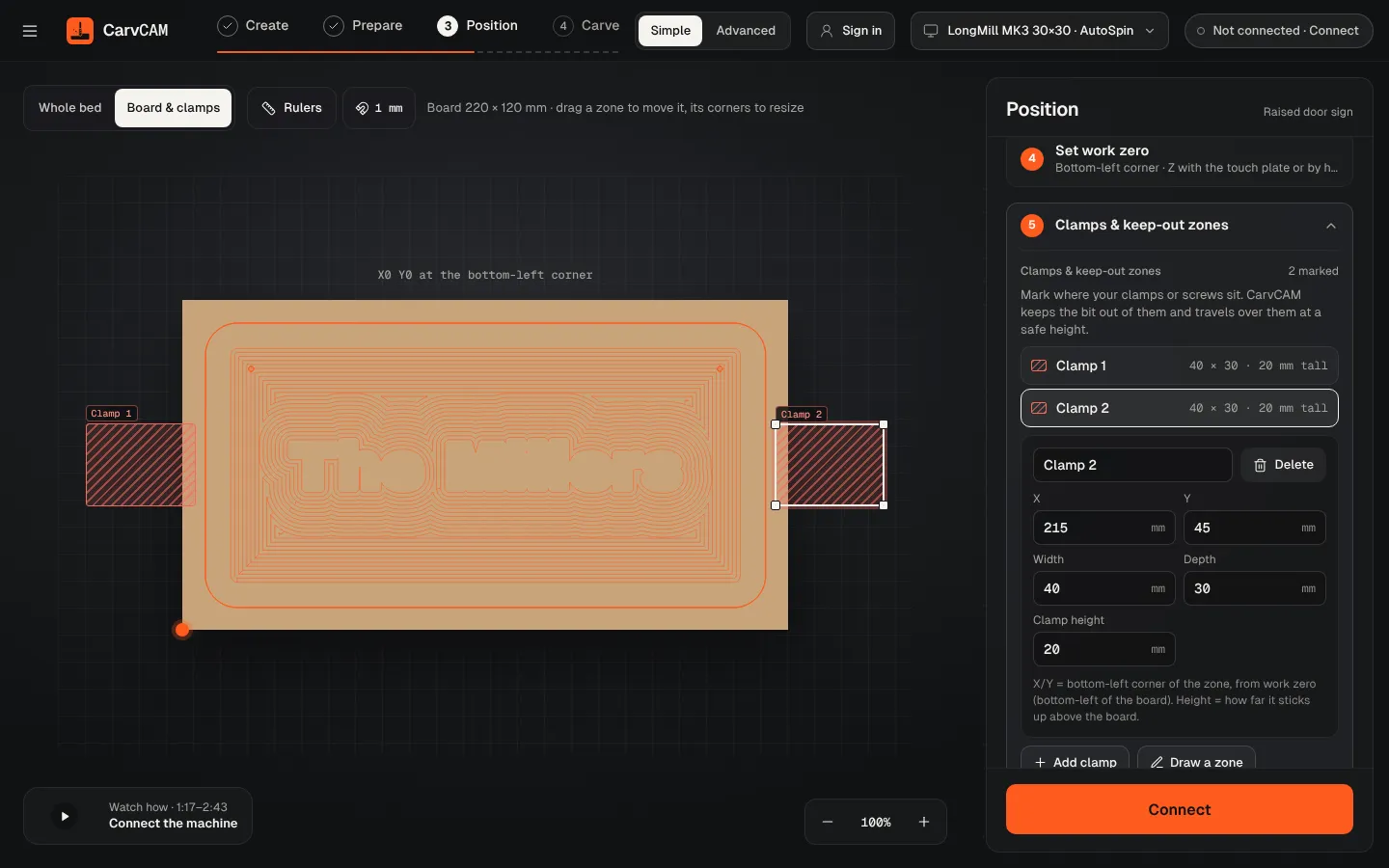
In Position, open Clamps & keep-out zones (optional). Mark where your clamps or screws sit; CarvCAM keeps the bit out of them and travels over them at a safe height.
Draw a zone
Click Draw a zone and drag on the board where the clamp is.
Fine-tune
Name it and set X, Y, Width, Depth and Clamp height. X and Y are the bottom-left corner of the zone, measured from work zero; height is how far it sticks up above the board.
Check
If a cut would hit a zone, it's marked Error · blocks carving and Prepare tells you to move the clamp or the design.
Setup sheet
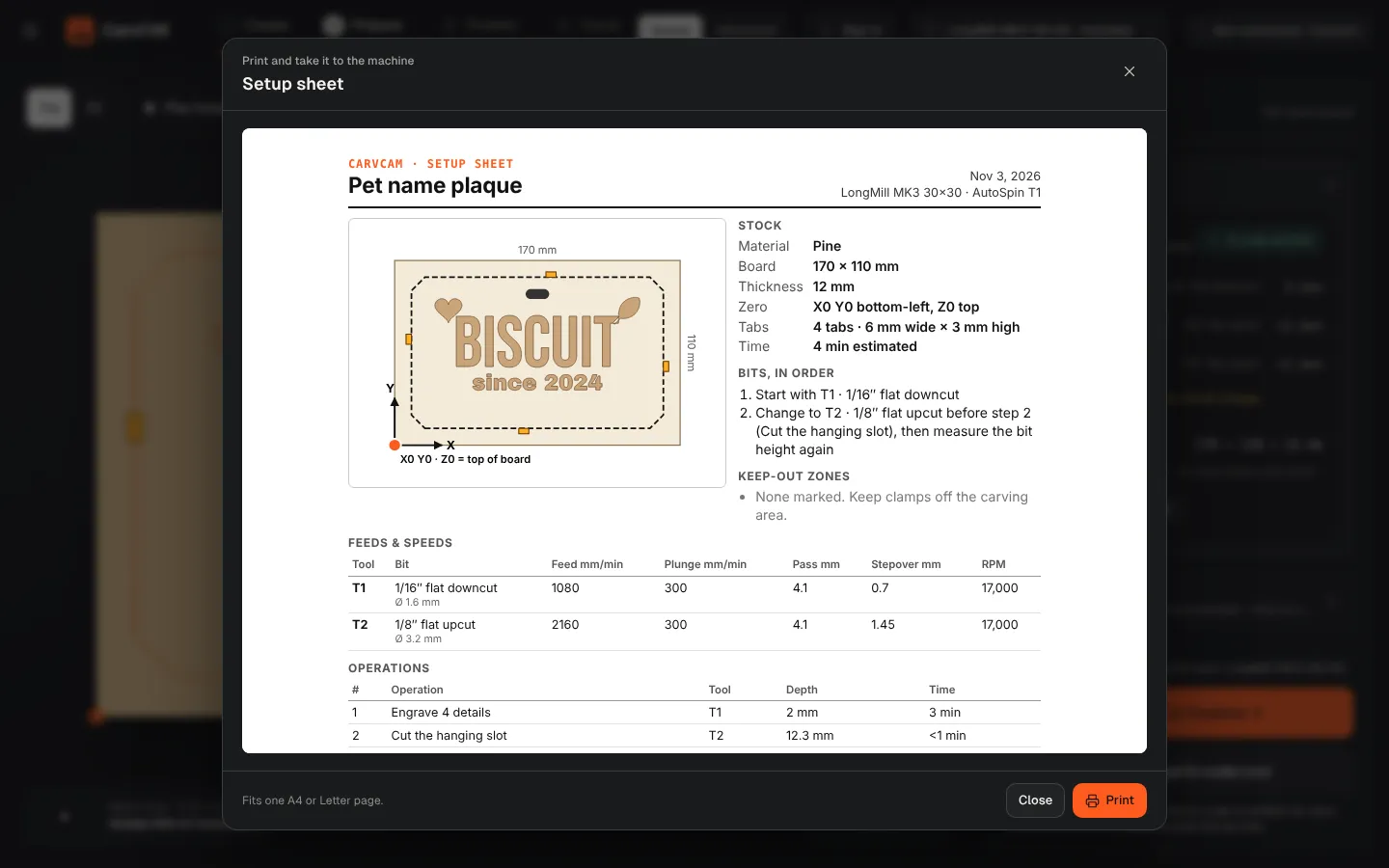
In Prepare › Time & G-code, click Print setup sheet. It fits one A4 or Letter page and shows:
- The board size and material, and where zero goes
- A drawing of the job with the clamps you marked
- Each bit in order with feed, plunge, depth per pass, stepover and RPM or Makita dial
- The holding tabs
- A checklist: board clamped, zero set, dial or spindle, dust collection, eye and ear protection
- Whether the G-code was verified