
How to Install CarvCAM on a Mac (Apple Silicon or Intel)
Pick the right download for your Mac's chip, drag CarvCAM to Applications and get past the first-open warning with Open Anyway, on macOS 15 Sequoia and on older versions.
Check your chip
Open the Apple menu › About This Mac. Chip: Apple M1, M2, M3 or newer means Apple Silicon. Processor: Intel means Intel.
Download the right file
On the download page, click Apple Silicon (CarvCAM-Mac-arm64.dmg) or Intel (CarvCAM-Mac-x64.dmg).
Drag to Applications
Open the .dmg and drag CarvCAM onto the Applications folder. Then eject the disk image.
Open it the first time
Open CarvCAM from Applications. macOS says it can't check it for malicious software: click Done. Open System Settings › Privacy & Security, scroll down to the message about CarvCAM, click Open Anyway and confirm with your password.
Older macOS
On macOS 14 Sonoma and earlier, you can instead Control-click (right-click) CarvCAM in Applications, choose Open, then Open again.
Set up your workshop
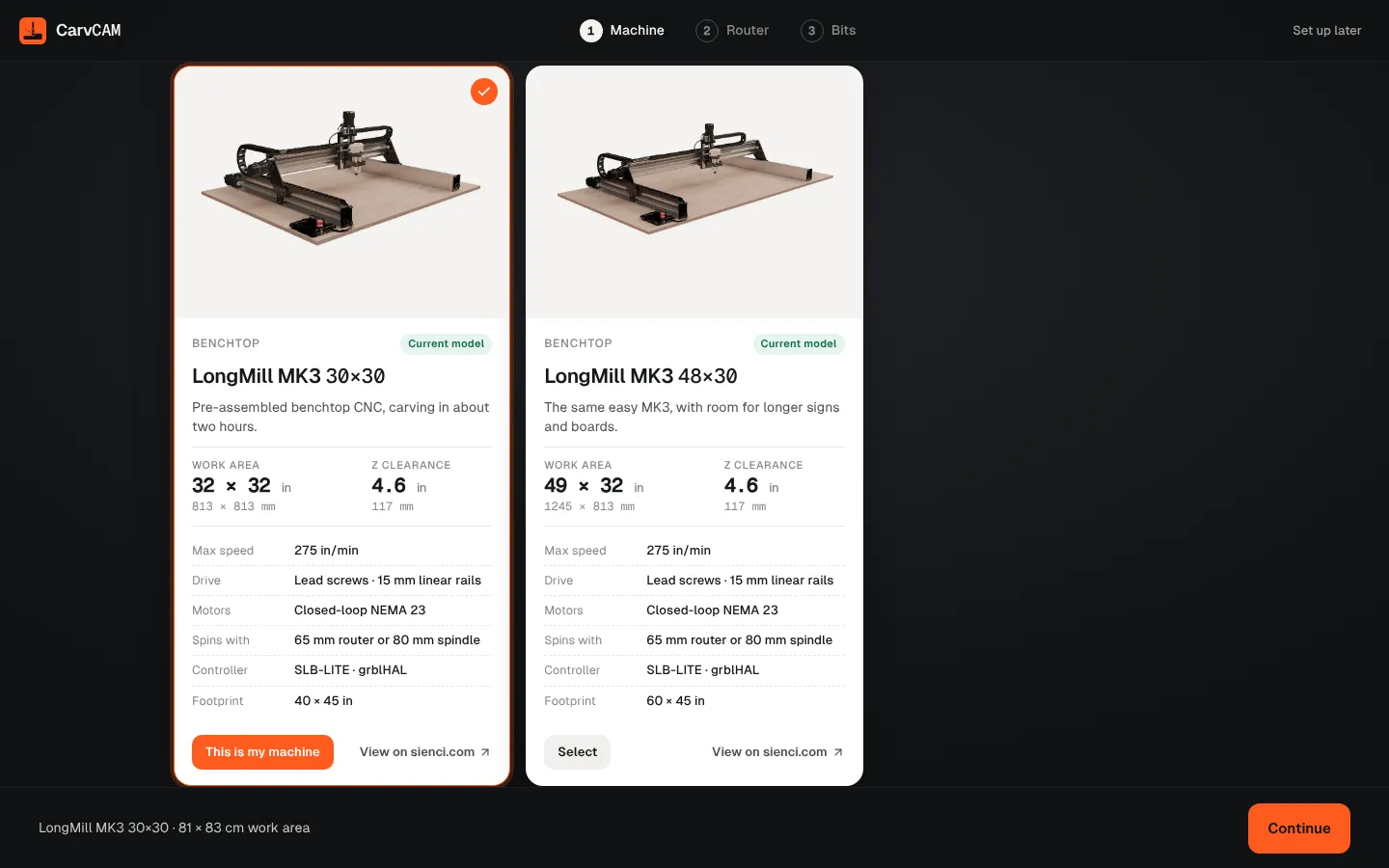
After that, CarvCAM opens like any app. Pick your machine, what spins the bit and your bits.
From blank board to finished sign.
One app for your LongMill or AltMill.